
Restoring & Managing Purchases
Learn how users can manage and restore purchases made via the web.
When users purchase through web checkout, they can access their account details via a plan management page. This URL is included in their receipt, which is sent to their email after a successful purchase. To retrieve the link, users must enter the email they used during checkout. Otherwise, to offer this link manually you can use the following URL format:
https://{your URL in settings}.superwall.app/manageBy default, after a successful checkout, Superwall emails the address used at checkout with instructions and a redemption link to activate the purchase in your app. The email is sent from Your app name <support+your-app-name@superwall.app> with the subject Your activation link from your app name.
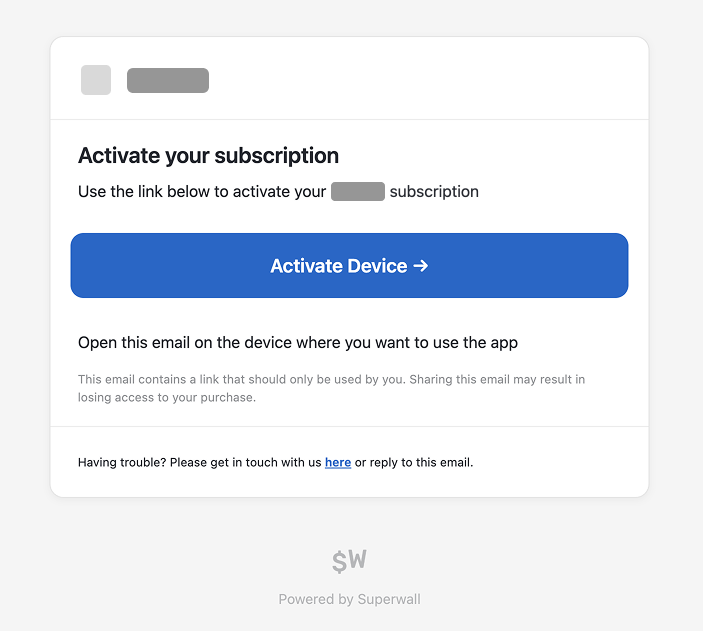
If your app uses Sign in with Apple and customers may check out with Hide My Email, configure
Apple's private email relay before launching web checkout. Apple can reject Superwall web checkout
emails sent to privaterelay.appleid.com addresses unless superwall.app is registered as an
email source. See Web Checkout FAQ
for setup steps.
If you want to disable these emails, use the "Disable Superwall Emails" setting in your Stripe app settings — see how to disable the activation link email.
When this page is visited, users enter the email they used during checkout to receive a link to manage their purchase:
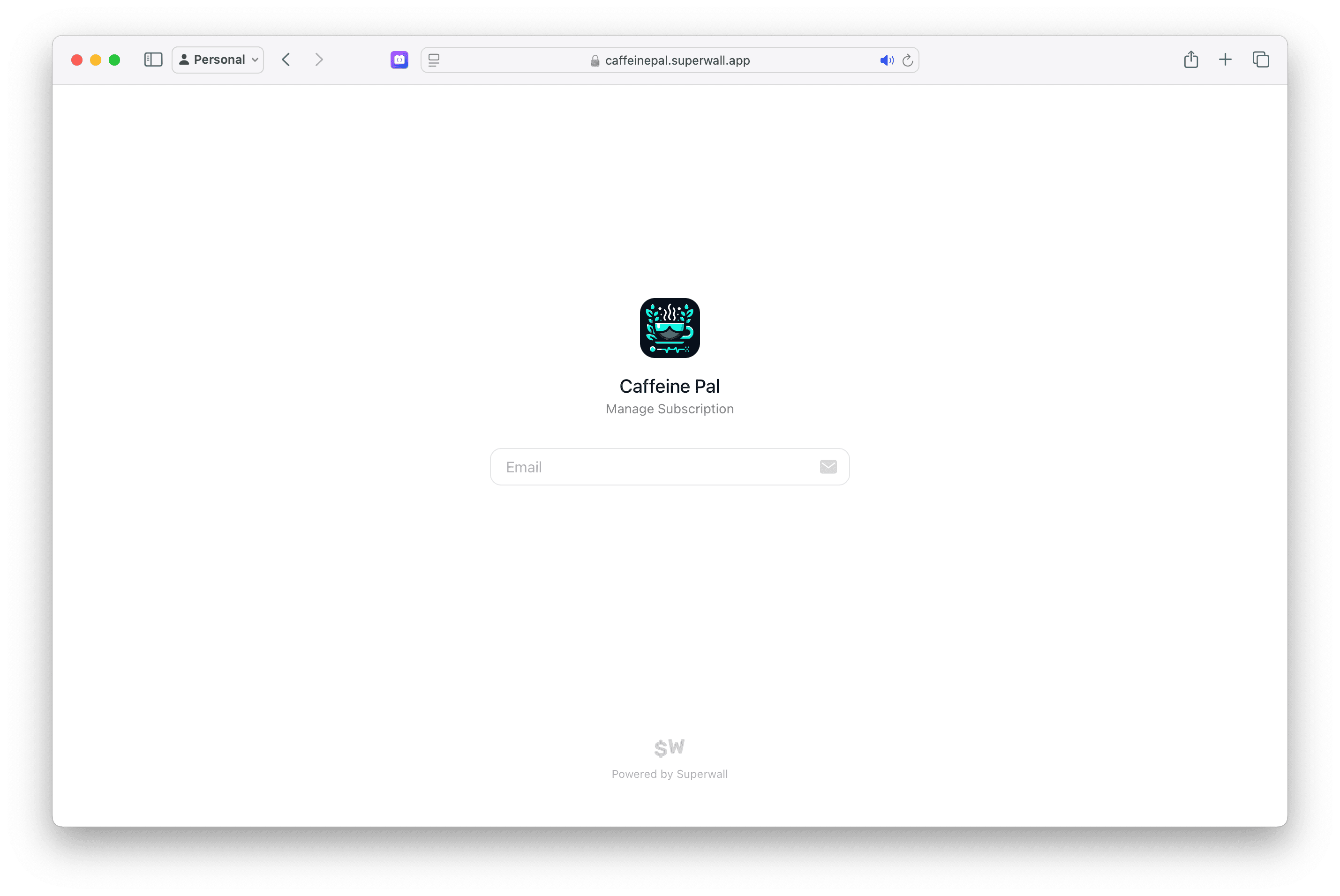
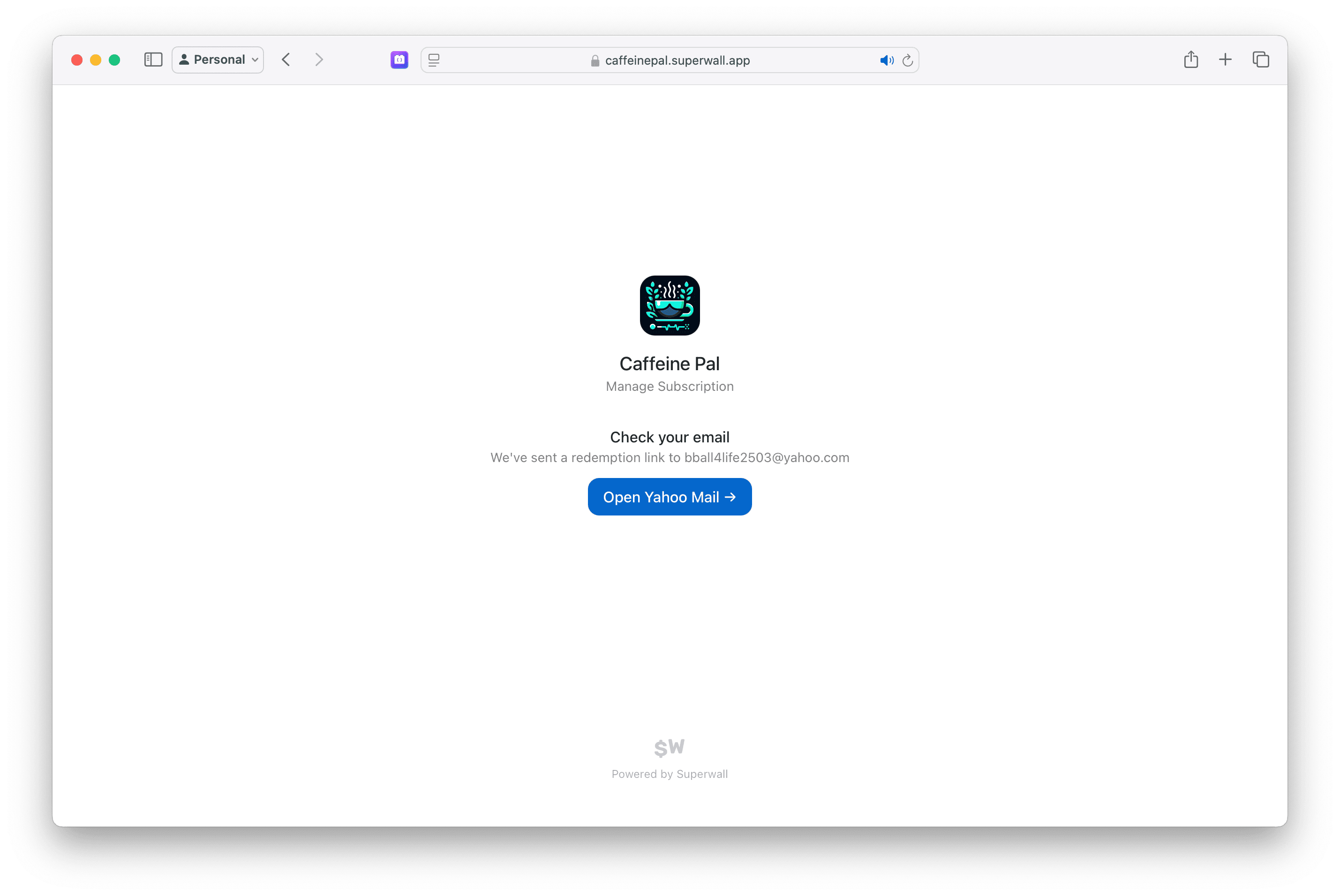
For the above example, the URL would be https://caffeinepal.superwall.app/manage. After entering their email, they will receive a link to restore access, manage subscriptions, update payment methods, view their billing history, and more:
For situations where a user needs to restore their purchases, check out the answer in this F.A.Q.
How is this guide?